A new Corporate Tree
A new Corporate Tree to help you understand who you're really doing business with. Data now comes straight from ASIC, and the Tree is now fully interactive.
.avif)
Understanding who you're really doing business with just got a lot easier. Corporate Tree data now comes straight from ASIC, giving you a more accurate view of a vendor's ownership structure. It's also now fully interactive, so you can click through branches and explore the Corporate Tree for yourself.
Let’s take a closer look at what’s new in this update.
What is a Corporate Tree, and why would you use it?
A Corporate Tree maps the ownership structure of a business, showing the parent companies, subsidiaries, and related entities that make up its Group, along with majority and minority ownership stakes.
You can use this to understand the ownership structure of the vendor you're dealing with, because a vendor's risk profile doesn't exist in isolation. Ownership changes, related entities, and Group structure can all affect delivery risk, financial exposure, and who's ultimately accountable. It gives you visibility into these relationships straight from the source (ASIC) without relying on the vendor to disclose them.
Key changes
- Data is now sourced directly from ASIC and updated monthly. We no longer ask the Entity to submit details on their Corporate Tree or Group structure.
- It's now an interactive Corporate Tree map, available in-platform! No more static documents. Click to expand branches, follow the ownership trail through the Group, and see the ownership percentage at each link.
- Majority and minority ownership across a company and its Group is now clearly displayed, including the percentage of ownership at each relationship.
What this means for you
- Easier to explore and understand at a glance, with a more visual way to navigate complex Group structures.
- Shows the full Corporate Tree as registered with ASIC, giving you the complete picture every time.
- Improves the accuracy of the assessment outcome, since it's built on up-to-date data rather than relying on the vendor to supply information that may be incomplete or outdated.
How to interpret the new Corporate Tree
Entity types
Each entity in the Corporate Tree is colour coded so you can see at a glance how it relates to the assessment:
Ultimate Parent Entity: the top of the ownership structure shown.

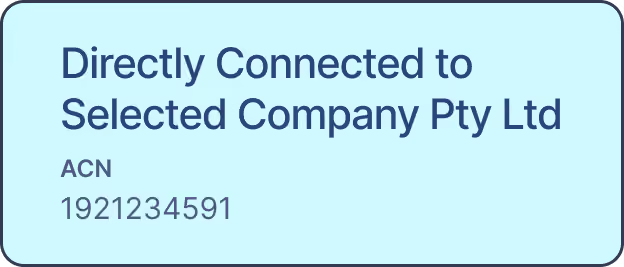
Directly Connected to Selected Company: when an Entity in the diagram is selected, any directly connected company within the diagram will also be highlighted up to the Ultimate Shareholder.
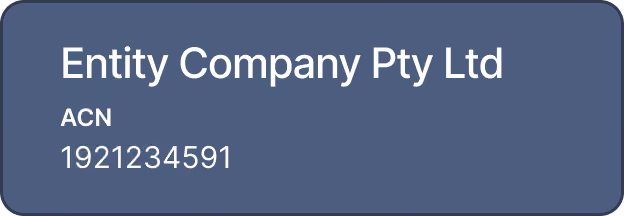
Main Entity Assessed: the vendor the assessment was completed for. This is highlighted by default when the Tree is opened.
Related Party: other related or affiliated entities in the Group. These may be directly related to the Entity Assessed under the same Direct Parent, or they may just be related by being within the same corporate group with the same Ultimate Parent Entity.
.avif)
External: an entity flagged as sitting outside the immediate Group structure, or where linked data is incomplete.
.avif)
Ownership percentages
The percentage on each connecting line shows the ownership stake one entity holds in another. For example, 100% means full ownership; 60%/40% split across two lines from the same entity means ownership is divided between two shareholders.
Where a company has multiple owners, you'll see multiple percentage lines branching from it, and they'll always add up to 100% of that entity's shares.
%403x%20copy.avif)
Share classes (ORD, A, B, and others)
Some connections also show a share class, such as ORD, A, or B. These come directly from ASIC's company register and indicate the type of share the ownership percentage relates to:
- ORD: Ordinary shares. The standard share type, carrying voting rights and dividend entitlement.
- A / B (and similarly lettered classes): Company-defined share classes, most often used to separate voting rights from dividend rights (for example, in family trusts or businesses where one shareholder manages operations and another receives income). What each class actually entitles the holder to is set by that company's own constitution, not by ASIC.
- PRF: Preference shares, which usually give the holder priority over ordinary shareholders when dividends or assets are distributed.
- RED: Redeemable shares, which the company can buy back under set conditions.
If a connection shows more than one class (e.g. Classes: ORD, A, B etc.), it means the ownership stake shown is made up of shares from more than one class combined.
For more information on share classes, see the ASIC’s website.
%403x.avif)
Navigating the Corporate Tree
- Once you’re logged in, you can click through the Tree, expand branches, trace relationships across the Group, and see ownership percentages at each link.
- Click an entity to select it. Its full ownership trail, both upward to parent entities and downward to subsidiaries, highlights so you can trace the connection.
- Click again to expand or collapse branches and explore further into the Group.
- The Tree defaults to a collapsed view centred on the assessed vendor; expand branches to see the full structure.
Where to find it
Assessment report
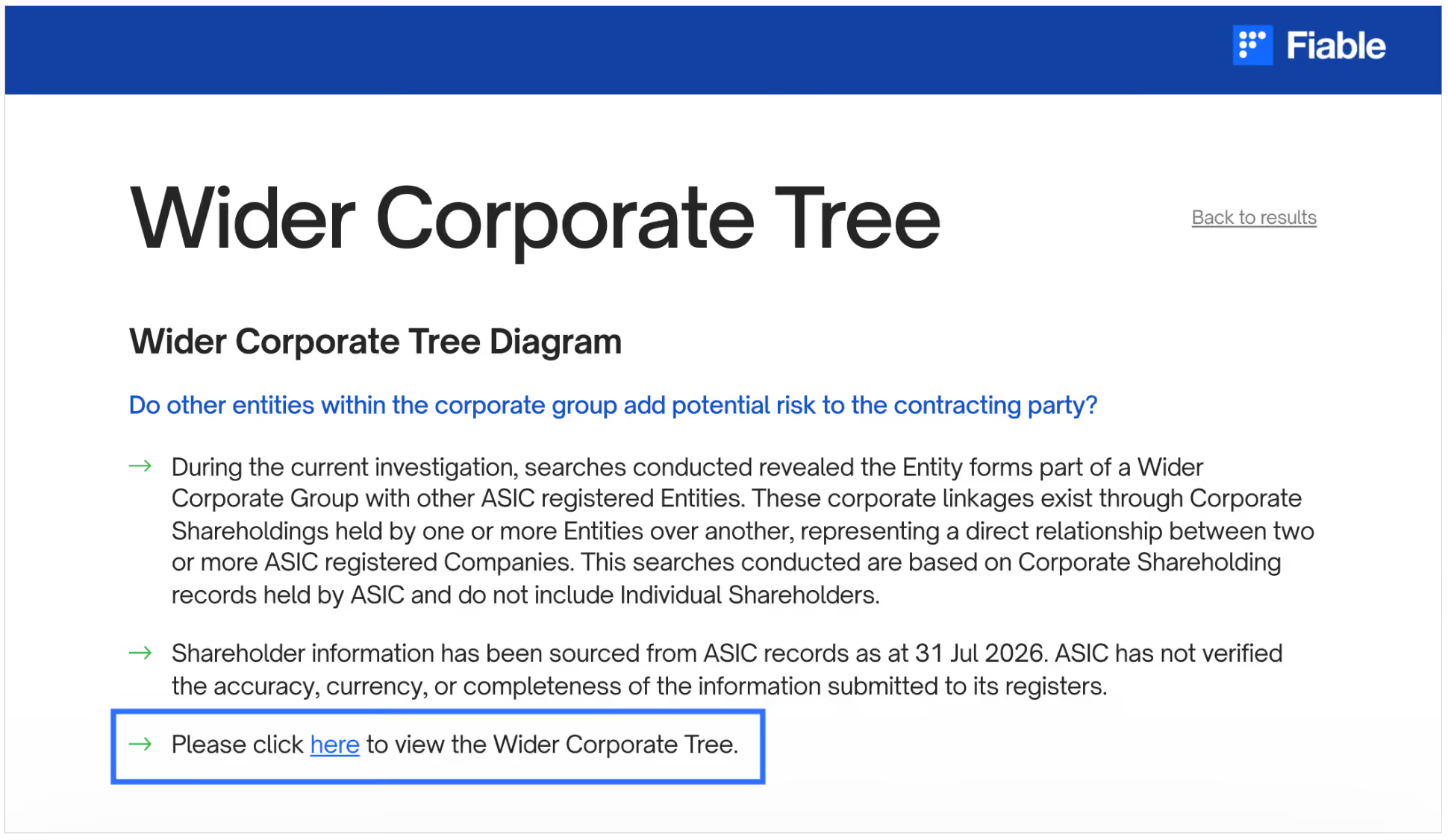
Financial Viability Assessments and Contract Readiness Assessment reports (PDFs) will contain a link to the Corporate Tree (where one exists based on ASIC registrations). This link requires a Fiable login to access.
In-platform
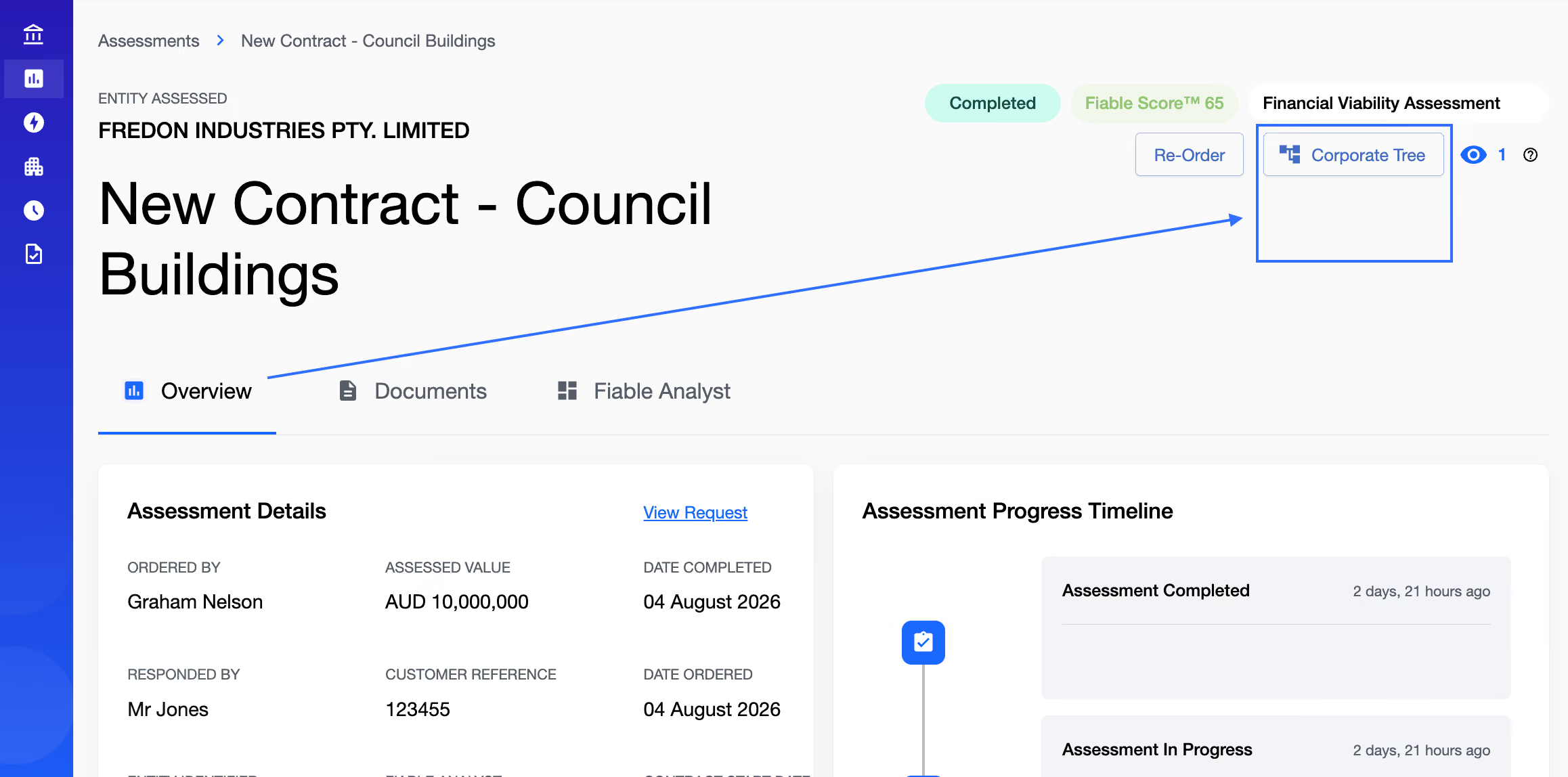
The Corporate Tree is now also available via the Fiable platform, when viewing a specific assessment request after the assessment is completed and ready for download. The button sits in the top right of the details page, next to the Score and Watchlist.
Anyone with visibility of an assessment can access the Corporate Tree of the assessed vendor via the Fiable platform. No separate permission required.
FAQs
What happens if a vendor's Corporate Tree structure changes after their assessment is completed? Will the Tree update automatically, or only at the next assessment?
The Corporate Tree information refreshes monthly and updates automatically. It's tied to the vendor's ACN rather than the assessment itself, so if you open an assessment from 3 months ago (for example), you'll see the current structure, not what it looked like at the time of assessment.
What if ASIC has no registered Group structure for a vendor? Will the Corporate Tree still appear?
No. If ASIC has no registered group structure for the vendor, no Corporate Tree will display, since there's nothing to show. In that case, refer to the Registered Directors and Shareholders sections in the report instead which will show how the entity is actually structured.
Does the Corporate Tree cover overseas parent companies or subsidiaries, or only Australian-registered entities?
The Corporate Tree only covers Australian-registered entities with ASIC. An overseas entity can still appear if it holds a valid ACN, since some overseas companies register for one. In that case, it will show with its name and ACN like any other entity, but the Corporate Tree won't flag it as overseas.
Who can view the Corporate Tree?
Anyone with visibility of the completed assessment can view the Corporate Tree of the assessed vendor, you'll just need to be logged in to your Fiable account first. There are two ways to get to the Corporate Tree:
- On the Fiable platform: log in as normal and open the assessment.
- From the downloadable PDF: the report includes a link straight to the Corporate Tree, which will also ask you to log in using your existing Fiable account.
No separate permission is needed beyond your existing platform access. Once you're viewing the Corporate Tree, you can download it as a PNG image file to share with others who may not have Fiable platform access. New to Fiable or need access? Contact your Customer Success Manager for details on getting access.
Can I share the Corporate Tree link with someone outside my organisation?
The Corporate Tree link requires a Fiable login, so someone outside your organisation won't be able to open it directly. The best way to share it externally with someone that doesn’t have a Fiable account is to use the download option to save the Corporate Tree as an image, then send that file to them instead.
With every assessment, you'll now see exactly how a vendor's group is structured, right down to the ownership percentages and share classes. Reach out to your Customer Success Manager if you'd like a walkthrough of the feature.
PDF download
Fiable product guide
A comprehensive overview of the platform, features, and our different solutions.
What else is new?
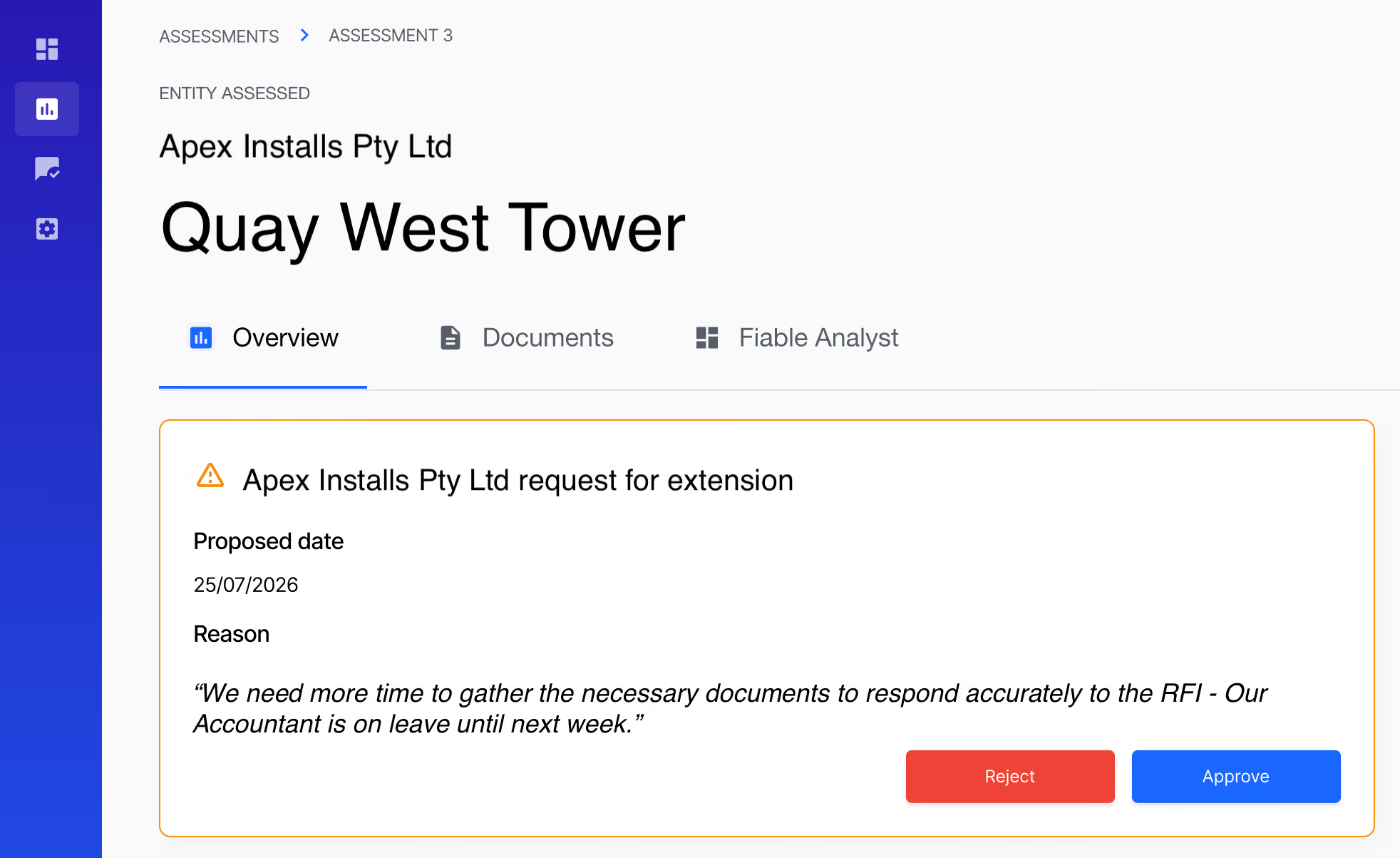
Vendors can now request extensions in-platform
We've released Request for Extension, a self-service way for vendors to ask for more time on an assessment, with a simple approve or reject workflow for Customers to review each request.
.avif)
UpSkill Academy: on-demand videos to build financial viability knowledge
We've launched an on‑demand video series that covers interpreting financial viability, and understanding key financial documents.
.avif)
Introducing the Contract Readiness Assessment!
A new way to see delivery risk. Assess your vendors in a few minutes, without their involvement and all tailored to your contract requirements.